
Loxone Exosphere changelog
Alpha 2026.10.29
Features
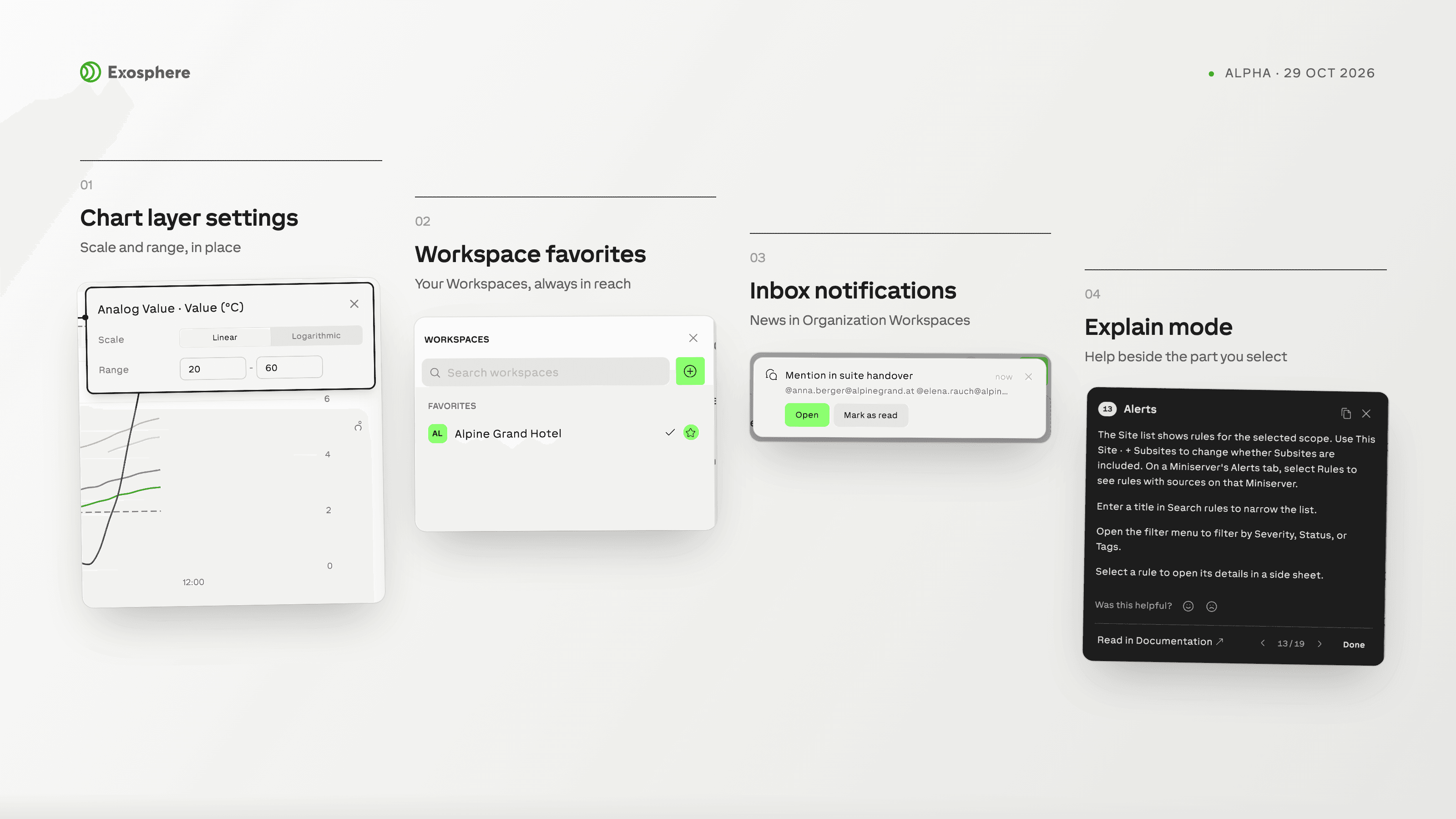
EXO-6957 — Star Workspaces in the desktop Workspace selector to keep them together under Favorites.
Your favorites follow your account across browsers and devices.
EXO-6960 — Create a chart directly from a dashboard panel's Change Content menu, then return to the same panel and layout after editing it.
EXO-6834 — See new Inbox activity in notification cards while you work elsewhere in an Organization Workspace. Open an item or mark it as read directly from its card; adjust notifications in your user settings.
EXO-6956, EXO-7030, EXO-7031, EXO-7032 — Read documentation beside your work and use Explain mode to explore marked areas of Overview, Alerts and First Steps.
Improvements
EXO-6875 — Edit Value History beside its values, with an immediate preview, automatic saving, Undo and Redo. Open a data point’s Details and Formatting in a second panel.
EXO-7019 — Click a chart layer’s Y axis to adjust its stacking, scale and range in place. The time controls remain available while you edit.
EXO-6961 — Find existing charts and schematics with the same search used for Function Blocks. Searches start in your dashboard’s Site and Subsites, and show Site paths to distinguish matching names.
EXO-6962 — Search across filter names and their values from one field, and choose filters using the keyboard.
EXO-6719 — Side panels use the object’s name and clearer headers. Changes to templates, tags and Miniservers save automatically, with the save state shown on the close button.
EXO-6642 — Manage files and links directly from the Site Overview Documents section. Row menus offer the relevant actions, and details show the Site, uploader, file format and dates in your account’s format.
EXO-5197 — Charts choose a shared tooltip for two or three series and a single-series tooltip for denser charts. Choose Auto, Single or Shared in Expert settings; existing explicit choices stay unchanged.
EXO-7028 — In Enterprise Workspaces, a Function Block Set’s Used on row includes charts and alert rules as well as dashboards.
EXO-6879 — Creating an alert rule uses a clearer statistics icon when you select existing statistics.
EXO-6969 — New Sites and Subsites include Dashboards, Charts, Schematics and Value History folders, even when empty. Remove from Pages makes clear that the underlying item stays in its folder.
EXO-7137, EXO-7142, EXO-7143, EXO-7144 — Go back through documentation, return home, and use Show on page without losing your place. German search terms find the English documentation, and page menus provide Documentation and Explain mode.
EXO-6045 — Information marks now focus on useful reference details such as formats, limits and rules.
EXO-6430 — Workspace settings and room and category groups refresh after changes instead of remaining stale.
EXO-6901 — Task details stay compact until someone adds the first comment.
Bugfixes
EXO-7152 — Chart interpolation no longer introduces peaks around daylight-saving changes.
EXO-7153, EXO-7154, EXO-7155 — Status Overview lets you hide a Function Block Set’s Value and configure a Neutral status and status icons. Summary views retain all status buckets and use consistent names, colours and proportions.
EXO-7157 — Long Add Data Point filters keep their remove button visible, and filter submenus no longer cover the results.
EXO-7136, EXO-7138, EXO-7139, EXO-7140, EXO-7141 — Contextual help opens the right page and section. Exact document titles rank first, the page fits beside its documentation panel, and tables and images remain readable in light and dark themes.
EXO-7174 — The Energy dashboard’s Meter panel keeps values readable, uses clear output names and omits outputs without a signal.
EXO-7089 — Site Overview rows place values and row menus correctly on phones.
EXO-7178 — The external-contact dialog in alert rules has the expected dark backdrop.
EXO-7180, EXO-7182 — Site headers avoid duplicate menus, and Invite user sits with the team-member page actions.
EXO-7181 — Favorites selection actions stay within the mobile screen.
EXO-7098 — Selecting Home preserves the pinned three-column navigation layout.
EXO-5872 — Trial notifications can reach the Workspace owner when the original contact is unavailable.
EXO-7093 — System Status lists and calendars use the last occurrence consistently. Details distinguish first occurrence, last occurrence and resolution, while “since” uses the first occurrence.
EXO-7133 — Site Overview section counts align with their action buttons.
EXO-6017 — Dashboards with multiple statistics charts load without overwhelming chart requests and causing gateway timeouts.
EXO-6028 — Changing an email address reconciles permissions while preserving accounts, sessions and Workspace content.
EXO-7125, EXO-7127 — Miniserver and Function Block lists fit smaller screens, with clearer cards, metadata, sorting and pagination.
EXO-7131, EXO-7132 — Site Access and policy settings use clearer layouts on desktop and mobile. Group-member lists can recover from a failed request without leaving Site Access.
EXO-7135, EXO-7148, EXO-7166 — Collection selection checkboxes select rows directly, and bulk-action controls stay aligned and reachable on mobile.
EXO-7149 — Miniserver task bulk actions have usable controls and an available action menu.
EXO-7134, EXO-7145, EXO-7163, EXO-7164 — Inbox messages have clearer text and titles. Resolved items are distinguishable, and deleting a task closes its open Inbox details.
EXO-7146 — Dashboard panels measure their width before appearing, avoiding an initial resize jump.
EXO-7161, EXO-7162 — Task boards no longer scroll far into empty space, and their filter menu opens with the expected transition.
EXO-7167 — Active chart filter chips remain fully visible on mobile, and bulk actions and the time menu stay reachable.